


SEO Friendly Post Titles and Permalinks

 The title of your post is the 3rd most important thing you can do to make your blog SEO friendly. The first is the name of your blog and the second is the URL of your blog.
You need to make sure your blog is optimized so search engines can find it. When you do anything that helps search engines find your blog like I am going to teach below, you are using SEO techniques.
When you create a title for your post and then publish that post your blogging platform gives that post a PERMALINK. A Permalink is the permanent link to that post you just wrote.
Creating SEO Friendly Post Titles in WordPress
WordPress will allow you to write super long post titles and include lots of keywords in them and then it will turn your post title into a nice long URL that includes all of those keywords. This is one of the best built-in SEO feature WordPress offers. WordPress will also allow you to change the Permalink of a post if you decide you made a mistake or want it to be something different later on. Blogger does not allow you to change your URL. This is the only real thing that bugs me about Blogger but I have a work around (see below).
Example: what if I wrote a post with this title
How to Save Money By Clipping Grocery Store Coupons
WordPress would turn it into something like this:
http://www.nameofyourblog.com/....how-to-save-money-by-clipping-grocery-store-coupons
Do you see what WordPress did?
It kept your entire post title in that post's URL even though it was super long. It put hyphens (dashes) in between each word. This is very important because now not only does your title have keywords in it, the title matches the URL.
How to Create SEO Friendly Post Titles in Blogger
While WordPress allows you to edit your post's permalink, Blogger does not offer this feature. For this reason some thought should go into what you want for your permalink for EACH AND EVERY POST YOU WRITE because you can't change them later. The most you can do is delete the post and start over. And, once people read it you don't want to do that. Take a few extra minutes and think about how to match up your title with what Blogger is going to turn it into and it will go a long way in making your blog SEO friendly.
Blogger cuts off the title you write after 35 to 40 characters (a character is a single letter, number or space). That means that if you write a super long post title the URL will be cut off after around 40 characters. In that case just make sure the most important keywords are near the beginning.
Post Example: using the same example above
How to Save Money By Clipping Grocery Store Coupons
Blogger would turn it into:
http://www.nameofyourblog.com/...how-to-save-money-by-clipping-grocery.html
Do you see what Blogger did?
One of the most important keywords, coupons, was cut off. Those dashes that were inserted are considered part of the 35 to 40 characters because they represent the spaces you put in between the words in the title.
A better choice for title would be: How to Save Money By Clipping Coupons
Blogger Post Title Trick:
Write and rewrite
Here's what I would do in that case. I like my long post titles so I would write the title as How to Save Money By Clipping Coupons and then I would publish my post. Then I would click Edit Post and go back and change the title to How to Save Money By Clipping Grocery Store Coupons.
You see, once you publish the post the Permalink is set and now you can go back and change your title to a super long one and it won't effect the permalink.
A Winning Combination
Now your next step is to make sure you are using the same keywords in the post you write. Include the words you have put in your title like "save money", "grocery store coupons", etc.
When your post title matches the post URL (or permalink) and what you write in the post matches you have a WINNER! Now that post can easily be found on search engines because it has the winning combination.
How to I find and copy the Permalink for a particular post?
If you wanted to send someone to read that post you just wrote you wouldn't send them to your homepage. You would send them directly to the post by giving them the Permalink, or permanent link to the post.
There are two ways to find the permalink to a post.
- Go to the public view of blog and find the post. Hover your mouse over the post title and then look at the bottom of your screen in the taskbar and you will see the permalink to the post. If you want to copy the permalink to send to someone then just right-click on the post title, and then left-click Copy.
- On the backend of your blog where you write your posts click Edit Post. Find the post you are searching for but do not open it. Hover your mouse over the View link and then look at the bottom of your screen in the taskbar and you will see the permalink to the post. If you want to copy the permalink to send to someone then just right-click on the View link, and then left-click Copy.
- SEO: Search Engine Optimization (things you do to your blog and blog posts to help your blog get found through search engines)
- Permalink: the permanent link to that post you just wrote
- Taskbar: the gray bar at the bottom of your browser that indicates when something is going on such as a page is loading, the URL of a page when hovered over, or if a page is Done loading
- Character: a single letter, number or space
Monday, January 11, 2010 |
10
comments |
Read more...
Does Your Blog Solve a Problem or Answer a Question?
In a previous posts I talked about how to pick your blog's topic and then decide whether your blog will be a social or search engine blogger.
Now we come to the topic of content and this is another way to figure out what your blog could be about. I talked about it before but I wanted to expand on this idea.
Of course you have heard, "content is king" which means that what you write about is what attracts readers to your blog.
The content is the meat of your blog. If you don't have content then what is the search engine going to pick up? If you just post one sentence and maybe a picture there is not enough meat for the search engines to grab.
If you have a social blog then content is what drives the people to keep coming back and participating through comments and interacting with you. Readers use "word of mouth marketing" to spread what you are writing around and that attracts other readers.
If you have a search engine blog then content is what drives your traffic from what people search for on Google and other search engines.
Now whether you are a social blogger, a search engine blogger, or somewhere in the middle, one of the best ways to attract traffic and readers is to SOLVE A PROBLEM or ANSWER A QUESTION!
What do we all use the Internet for?
 Information. We all have problems - big problems and small problems - and we are all looking for answers.
Sally wants to know what to do with the pound of hamburger she bought to cook something new and interesting for dinner.
John wants to know how to fix that leak under the sink.
Joe wants to know how to solve the math problem his teacher gave him.
Rachel wants to find a way to save money on her grocery bill each week.
Bob is looking for a review for the lawn mower he wants to buy.
Do you get the gist of what I am saying? Solve a problem, answer a question, and you have your blog's topic.
Readers will come to you because instead of figuring out how to solve their problem on their own you will do it for them.
People are busy. We are busy. People need answers and they don't have a lot of time to find the answers on their own.
But, what questions will your blog answer?
Everyone is looking for answers to something.
What problems will your blog solve?
The best way to figure that out and come up with content that you can put out on an ongoing basis is to look at yourself, your friends, and your family. What are you passionate about solving and what are the questions that you have answered so many times you know the answers or you know where the find the answers?
I have always been a problem solver. I was a quilting instructor for 7 years and loved working with senior citizens to help them create a quilt. They needed my help to cut the pieces, draw the 1/4" marks so they could hand sew the blocks together. I loved showing them and others how to sew assembly line method and how to baste the layers together for quilting.
Then I became a computer instructor. I became quite good at explaining how to do simple things on the computer that appeared to be complicated for some but obvious for me. I put myself in my students shoes to come up with a step-by-step method to do just about anything on the computer.
When you help someone solve a problem or answer a question not only are you empowering them but you are becoming an expert on that topic. One thing to consider is, do you want to be seen as an expert on that topic for quite awhile. Once you are seen as an expert you will get those same questions over and over. If you write articles that solve problems you can create an index or sorts on your site and readers can use those same articles over and over. Then you can focus on short updates either everyday or 2 to 3 times per week. You can always start a new blog if you get tired of just one major topic. That is why I have so many blogs. Each one has a specific focus. It helps me make more money and also keeps me from getting bored.
Find out what people are asking in your field and then answer those questions.
You will not only build up a social blog but also a search engine optimized blog as well.
Put the answer or the question in the title of your post.
Do a test:
Go to www.google.com and type how to in the search box.
Do not type anything else and do not hit search.
Google has a neat query suggestion feature and it will bring back some interesting results.
Check out this screenshot. Without even typing anything else in the search box you see some of the top results for how to that people are typing in.
Boy, someone could have a great blog just writing about tying a tie or teaching someone to how to kiss? And just look at the amount of searches are being done for those results.
 You should get the picture now. Think about the questions you can answer in your line of work, or what your blog can offer to solve a problem.
Try some of these other words or phrases in Google to get ideas:
Now we come to the topic of content and this is another way to figure out what your blog could be about. I talked about it before but I wanted to expand on this idea.
Of course you have heard, "content is king" which means that what you write about is what attracts readers to your blog.
The content is the meat of your blog. If you don't have content then what is the search engine going to pick up? If you just post one sentence and maybe a picture there is not enough meat for the search engines to grab.
If you have a social blog then content is what drives the people to keep coming back and participating through comments and interacting with you. Readers use "word of mouth marketing" to spread what you are writing around and that attracts other readers.
If you have a search engine blog then content is what drives your traffic from what people search for on Google and other search engines.
Now whether you are a social blogger, a search engine blogger, or somewhere in the middle, one of the best ways to attract traffic and readers is to SOLVE A PROBLEM or ANSWER A QUESTION!
What do we all use the Internet for?
 Information. We all have problems - big problems and small problems - and we are all looking for answers.
Sally wants to know what to do with the pound of hamburger she bought to cook something new and interesting for dinner.
John wants to know how to fix that leak under the sink.
Joe wants to know how to solve the math problem his teacher gave him.
Rachel wants to find a way to save money on her grocery bill each week.
Bob is looking for a review for the lawn mower he wants to buy.
Do you get the gist of what I am saying? Solve a problem, answer a question, and you have your blog's topic.
Readers will come to you because instead of figuring out how to solve their problem on their own you will do it for them.
People are busy. We are busy. People need answers and they don't have a lot of time to find the answers on their own.
But, what questions will your blog answer?
Everyone is looking for answers to something.
What problems will your blog solve?
The best way to figure that out and come up with content that you can put out on an ongoing basis is to look at yourself, your friends, and your family. What are you passionate about solving and what are the questions that you have answered so many times you know the answers or you know where the find the answers?
I have always been a problem solver. I was a quilting instructor for 7 years and loved working with senior citizens to help them create a quilt. They needed my help to cut the pieces, draw the 1/4" marks so they could hand sew the blocks together. I loved showing them and others how to sew assembly line method and how to baste the layers together for quilting.
Then I became a computer instructor. I became quite good at explaining how to do simple things on the computer that appeared to be complicated for some but obvious for me. I put myself in my students shoes to come up with a step-by-step method to do just about anything on the computer.
When you help someone solve a problem or answer a question not only are you empowering them but you are becoming an expert on that topic. One thing to consider is, do you want to be seen as an expert on that topic for quite awhile. Once you are seen as an expert you will get those same questions over and over. If you write articles that solve problems you can create an index or sorts on your site and readers can use those same articles over and over. Then you can focus on short updates either everyday or 2 to 3 times per week. You can always start a new blog if you get tired of just one major topic. That is why I have so many blogs. Each one has a specific focus. It helps me make more money and also keeps me from getting bored.
Find out what people are asking in your field and then answer those questions.
You will not only build up a social blog but also a search engine optimized blog as well.
Put the answer or the question in the title of your post.
Do a test:
Go to www.google.com and type how to in the search box.
Do not type anything else and do not hit search.
Google has a neat query suggestion feature and it will bring back some interesting results.
Check out this screenshot. Without even typing anything else in the search box you see some of the top results for how to that people are typing in.
Boy, someone could have a great blog just writing about tying a tie or teaching someone to how to kiss? And just look at the amount of searches are being done for those results.
 You should get the picture now. Think about the questions you can answer in your line of work, or what your blog can offer to solve a problem.
Try some of these other words or phrases in Google to get ideas:
- can I
- show me
- teach me
- will I
- how do
- create
- make
Saturday, January 09, 2010 |
1 comments |
Read more...
Podcasts: Moms Changing Affiliate Marketing
 #asw10 I recently did a podcast series with @loxly Deborah Carney from AffiliateABCs and I will be a guest panelist at the upcoming 2010 Affiliate Summit West conference in Las Vegas.
Below you will find two of those podcasts. If you get a chance, listen to them so you will get to know me a little bit better. Then feel free to email me and we can discuss how to work together or meet up at the Affiliate Summit. If you check out my Facebook page you will see the schedule I have picked out while at the Summit.
Podcast #1: My Introduction
Podcast #2: Using Social Media to Drive Traffic
I will be discussing, along with 3 other "mom bloggers" how the mom movement is changing affiliate marketing. I believe we have a lot to teach the online community about alternate ways of making money online and how you don't have to work in traditional ways anymore.
Blogging as a whole has changed a lot for moms, who in the past, didn't have the opportunities to stay at home and make money for their family. When my kids were growing up I stayed at home and didn't go out and work until my youngest was in school. I know that it not the norm anymore and I am glad that the Internet is giving moms all kinds of opportunities to expand their horizons.
Not only can you make money online but now you have a community of other moms to turn to for support and help. I offer free advice on this sites that comes from my experience as a mom who has "been there" and someone who found blogging and is now making a living doing it. The freedom of staying home and working for yourself cannot be compared.
Saturday, January 02, 2010 |
0
comments |
Read more...
Blogger Question: Changing Templates and Saving Your Contents
 A read asks, if I change a Blogger template will it delete all of the contents?
Yes and No.
If you mean will Blogger delete the posts you have written then the answer is No. Your posts are safe.
However, it is always a good idea to backup both your existing template and your posts in case something goes wrong. Read How to Install a Template to find out step-by-step instructions for backing up your existing template.
Step-by-step instructions for backing up your posts:
- From your Blogger Dashboard click Settings.
- Click Basic.
- Click Export Blog.
- Click Download Blog.

- A window will pop up. Click Save File.
- Click OK.
- Locate where you want to save this file on your computer.
- Click Save.
Backup your Existing Template and Gadget Contents:
You will also want to back up your existing template in case something goes wrong. That way you can revert back to the original template to get things back the way they were if needed.
However, whatever you have inside of the gadgets/widgets may be deleted if you change your template dramatically.
You will want to back up the information you have stored in those gadgets before you change templates.
Tuesday, December 29, 2009 |
1 comments |
Read more...
Drive Traffic With Social Media
Social media is a modern way to connect with your friends that’s fairly fast and very easy. It can be compared to the backyard fence where housewives used to meet, chat and talk about the new products they were using, share a recipe, gossip, or just kill some time while the floor was drying. Product reputations grew by word of mouth. Products that are recommended by a friend are deemed good and can be trusted. The power of word of mouth advertising has long been acknowledged in the marketing world, but companies have been slow to recognize the potential of social networking sites like blogging, Facebook, LinkedIn, and Twitter until now.
Social media can be a very effective way to drive traffic to your mom blog, even if you don't have search engine traffic. I think you should be working on all of the SEO (Search engine optimization) tricks you can doing like writing indepth articles, using image alt tags, and getting other bloggers to link to your blog using your target keywords but why wait for all of that to kick in when you can drive traffic immediately with sites like Facebook and Twitter?
When I have something I want to get out quickly and want people to see I immediately go to Twitter and send out a quick tweet. Then I go to Facebook and send out the same message, making it slightly longer. It definitely works as within minutes I have a flood of traffic. While this social media traffic may not last it does a variety of things - it gives me an instant spike in traffic, may bring some added income that day, and introduces new people to my blog. It may also gain me more Twitter followers and Facebook friends.
The Power of Social Media Traffic
 Spend time in one of your favorite social media sites and you will discover that they are mostly updates of people's opinions. What they think of this product they just bought, or a restaurant they just tried.
Check out that person who just told their 5,000 Twitter followers that the latest super-hero movie is fabulous and a must see!
In fact, most things on these sites are mainly statements with a point of view. "I tried the Mandarin Chicken dinner at Fun Chow Wang and it was great! Did I mention it was cheap too? You should go and try it." Or, "the Hoover cordless stick vacuum is so powerful I think it will replace my regular vacuum. It is definitely worth the cost."
That very same person may also blog about the newly opened club that’s fairly cheap but maybe lacks that "club ambiance" or complain about how they were treated when they went into their favorite store. The friends who read those posts are more likely to go try out what their friend liked and stay away from what they didn't like.
The power of word of mouth marketing is huge.
Everything you read on social networks are freely given to you and usually the person writing it isn't paid so you know it is real opinion by someone who used the product, blog, website, or service. The power of these personal recommendations should not be under-rated. These recommendations, in fact, are like promoting the place/business without the feel of someone forcing you to try something, or is hard selling something to you.
Gab about what you like or dislike on Twitter and Facebook and then send those viewers back to your full review on your blog or website. You will attract alot of visitors who might turn into readers and if not, at least they will be visitors and you might just make a little moolah for your efforts.
Have you used Twitter or Facebook to drive traffic to your blog? Did it work? How and what do you see as the benefits?
Image by Tech Crunch
Social media can be a very effective way to drive traffic to your mom blog, even if you don't have search engine traffic. I think you should be working on all of the SEO (Search engine optimization) tricks you can doing like writing indepth articles, using image alt tags, and getting other bloggers to link to your blog using your target keywords but why wait for all of that to kick in when you can drive traffic immediately with sites like Facebook and Twitter?
When I have something I want to get out quickly and want people to see I immediately go to Twitter and send out a quick tweet. Then I go to Facebook and send out the same message, making it slightly longer. It definitely works as within minutes I have a flood of traffic. While this social media traffic may not last it does a variety of things - it gives me an instant spike in traffic, may bring some added income that day, and introduces new people to my blog. It may also gain me more Twitter followers and Facebook friends.
The Power of Social Media Traffic
Spend time in one of your favorite social media sites and you will discover that they are mostly updates of people's opinions. What they think of this product they just bought, or a restaurant they just tried.Check out that person who just told their 5,000 Twitter followers that the latest super-hero movie is fabulous and a must see!
In fact, most things on these sites are mainly statements with a point of view. "I tried the Mandarin Chicken dinner at Fun Chow Wang and it was great! Did I mention it was cheap too? You should go and try it." Or, "the Hoover cordless stick vacuum is so powerful I think it will replace my regular vacuum. It is definitely worth the cost."
That very same person may also blog about the newly opened club that’s fairly cheap but maybe lacks that "club ambiance" or complain about how they were treated when they went into their favorite store. The friends who read those posts are more likely to go try out what their friend liked and stay away from what they didn't like.
The power of word of mouth marketing is huge.
Everything you read on social networks are freely given to you and usually the person writing it isn't paid so you know it is real opinion by someone who used the product, blog, website, or service. The power of these personal recommendations should not be under-rated. These recommendations, in fact, are like promoting the place/business without the feel of someone forcing you to try something, or is hard selling something to you.
Gab about what you like or dislike on Twitter and Facebook and then send those viewers back to your full review on your blog or website. You will attract alot of visitors who might turn into readers and if not, at least they will be visitors and you might just make a little moolah for your efforts.
Have you used Twitter or Facebook to drive traffic to your blog? Did it work? How and what do you see as the benefits?
Image by Tech Crunch
Monday, November 16, 2009 |
0
comments |
Read more...
Free SEO Tricks: Using Image Alt Tags
If you are a mom blogger you are probably visiting my site to find out how to drive traffic to your site. You want your blog to rank high on all of the all major SERPs (search engine results pages) for the major search terms important to your blog. To achieve this goal it is important that you understand various search engine optimization tricks that can insure that your mom blog can compete for the top ten listings for the same search terms that other mom bloggers are going after.
Why pay for SEO tricks when you have many basic tricks you can do for free? Many of the things I teach you have been around for quite awhile but we just don't take advantage of them. We rely on programs, plug-ins or paying an SEO company to do it for us.
Using alt tags on all of the images you add to your blog is a simple and surefire way to do help your mom blog rank in search engine results. I am not saying that it is going to drive a ton of traffic to your site but I have seen this free SEO trick work wonders on my own blogs and it can work for yours too.
I have had brand new blogs rank for keywords on the search engines within days just by using this tip. Using alt tags is something you should be doing on a continual basis everytime you post an image in a post or on your sidebar. Yes, it takes a few extra minutes or your time but it is worth the results it brings
And, once again, it is a free SEO (search engine optimization) trick you can do without paying someone to optimize your site or having to changeover to WordPress to get a SEO plug-in. See, I mainly teach how to optimize Blogger blogs. If you want to learn how to use WordPress then please visit Lorelle's blog.
What is an ALT Tag?
 ALT - which stands for alternative - was added to HTML as a way to attach text to a graphic, photo, or other image so that when people who are disabled - mainly those who cannot see and have a text reader read them web pages - would know that what they are "seeing" on the page is supposed to be a graphic. When you leave out the alternative text the reader just ignores the image and moves on. Sometimes that is fine but other times, like in the case of a button that needs to be clicked, it is vital information the person is not being able to see and the text reader move right on past it.
The alt tag is also used as a placeholder if the image is not available.
Search engines don’t comprehend images that you have embedded into a post or on your sidebar but instead the search engine is looking for words. If you don't use alt text tags the images won't be indexed and you will have wasted another opportunity to drive free traffic to your blog.
Test: Hover your mouse over the image below. You should see, Mommy Blogger Guide: Free SEO Tricks using Image Alt Tags, appear. That shows you that the image has alternative text added to the code.
How do you add text to an image?
 Step 1: Create a new post.
Step 2: Add an image to your post.
Step 3: Click Edit HTML.
Step 3: Local the image code and look for alt"". Here is the actual HTML for the picture you see to the right.
What should you type in between the image alt tags quotes?
I would suggest using keywords that help drive traffic to that post. If the post is about free SEO tricks I would put that phrase in the quote. You can even use the title of your post. You can always go back and change it if you want at a later date but putting something is better than never putting anything.
I would not suggest stuffing your image alt tag full of keywords because you can definitely overdo it and get your site banned as spam or search engines might just ignore it. Using alt tags is a good way to add targeted keywords to you blog's content and it is a free SEO trick you should do everytime you add an image and not once or twice when you think you want to test it out.
If you implement this simple, yet free, SEO technique, you should see the search engines boost your blog's ranking. By adding text in the image alt tag you are helping the search engine index that image and it will help your blog to come up when someone looks for images using specific keywords.
So to Summarize Image Alt Tags are good for:
Why pay for SEO tricks when you have many basic tricks you can do for free? Many of the things I teach you have been around for quite awhile but we just don't take advantage of them. We rely on programs, plug-ins or paying an SEO company to do it for us.
Using alt tags on all of the images you add to your blog is a simple and surefire way to do help your mom blog rank in search engine results. I am not saying that it is going to drive a ton of traffic to your site but I have seen this free SEO trick work wonders on my own blogs and it can work for yours too.
I have had brand new blogs rank for keywords on the search engines within days just by using this tip. Using alt tags is something you should be doing on a continual basis everytime you post an image in a post or on your sidebar. Yes, it takes a few extra minutes or your time but it is worth the results it brings
And, once again, it is a free SEO (search engine optimization) trick you can do without paying someone to optimize your site or having to changeover to WordPress to get a SEO plug-in. See, I mainly teach how to optimize Blogger blogs. If you want to learn how to use WordPress then please visit Lorelle's blog.
What is an ALT Tag?
ALT - which stands for alternative - was added to HTML as a way to attach text to a graphic, photo, or other image so that when people who are disabled - mainly those who cannot see and have a text reader read them web pages - would know that what they are "seeing" on the page is supposed to be a graphic. When you leave out the alternative text the reader just ignores the image and moves on. Sometimes that is fine but other times, like in the case of a button that needs to be clicked, it is vital information the person is not being able to see and the text reader move right on past it.The alt tag is also used as a placeholder if the image is not available.
Search engines don’t comprehend images that you have embedded into a post or on your sidebar but instead the search engine is looking for words. If you don't use alt text tags the images won't be indexed and you will have wasted another opportunity to drive free traffic to your blog.
Test: Hover your mouse over the image below. You should see, Mommy Blogger Guide: Free SEO Tricks using Image Alt Tags, appear. That shows you that the image has alternative text added to the code.
How do you add text to an image?
Step 1: Create a new post.Step 2: Add an image to your post.
Step 3: Click Edit HTML.
Step 3: Local the image code and look for alt"". Here is the actual HTML for the picture you see to the right.
<img style="margin: 0pt 0pt 10px 10px; float: right; cursor: pointer; width: 125px; height: 125px;" src="https://blogger.googleusercontent.com/img/b/R29vZ2xl/AVvXsEhtx4x4CIbjaf5NwcGXuEWrkZHwXHwjUh9sRcob3Ty_YkndPSqRsI3kgxzbvY8ne-SkduS-Al6ZWo8rkflwVNqClNCvlYmL-DSaRSWQ5QOuPpt55-AGvX1rSPOMxXxJD27wEkvziUdVrAXq/s400/mommybloggers125x125.jpg" alt="" id="BLOGGER_PHOTO_ID_5404181778277690498" border="0" />Step 4: Click in between the quotes and type the words you want the search engine to index that image for. If it is a button then you should be typing the name of the button.
What should you type in between the image alt tags quotes?
I would suggest using keywords that help drive traffic to that post. If the post is about free SEO tricks I would put that phrase in the quote. You can even use the title of your post. You can always go back and change it if you want at a later date but putting something is better than never putting anything.
I would not suggest stuffing your image alt tag full of keywords because you can definitely overdo it and get your site banned as spam or search engines might just ignore it. Using alt tags is a good way to add targeted keywords to you blog's content and it is a free SEO trick you should do everytime you add an image and not once or twice when you think you want to test it out.
If you implement this simple, yet free, SEO technique, you should see the search engines boost your blog's ranking. By adding text in the image alt tag you are helping the search engine index that image and it will help your blog to come up when someone looks for images using specific keywords.
So to Summarize Image Alt Tags are good for:
- Making your site accessible to the visually impaired
- Describes and image so that search engines can index them
- Add keywords to your blog posts to help your blog rank better
Sunday, November 15, 2009 |
5
comments |
Read more...
How I Doubled My Adsense Earnings Overnight
 If your blog primarily makes money with Adsense then you should optimize it properly on your site. If you are focusing mainly on affiliate programs then it doesn't matter so much.
Too many bloggers do not have Adsense setup properly on their blog. I have seen this over and over. Why would you put your Adsense ad blocks at the bottom of the page? How many people actually make it to the bottom of your page or stay around that long? Why would you bury your Adsense ads on the sidebar in between badges from other bloggers?
After reading that title of this post you probably think I am trying to sell something or it is a scam. Actually, it is the honest truth. It's not a trick and it happened because of some modifications I did to my blog. I noticed the jump in Adsense earnings within hours of this simple tweak and it continues to stay at that level. I thought you might like to know how you can do it too.
Of course, with blogging and making money with your blog you need readers or visitors to click on your ads. That's the first step. To get traffic you need to have a blog, write informative, topic focused articles that will attract readers, and get relevant, anchored textual, keyword backlinks for your topic and keywords. This post is not about how to get that traffic. If you don't have traffic and are not making any money with Adsense this article will probably not help you. Once you have some steady traffic and are at least making some money with Adsense come back and read this post again.
As women we worry way too much about what people think about our blog. Will they like it? Is it pretty? Will they approve? Do they like me? To make money you have to stop this train of destructive thinking and focus on facts.
To make money blogging you have to think like a businessperson.
When you go into your favorite clothing store, grocery or drugstore do you think they care if you like their business or approve of them? Not really - well maybe a little but that is not how they make money and stay in business. They make the store pretty to keep you there and keep you shopping and buying. They make you feel at home so you will spend money, not to make you like them. Their ultimate goal is to separate your money from your wallet and if they can make you comfortable, happy, solve a problem, or fulfill a need they can do just that.
Stores are arranged in a way that make you want to shop. There is a reason why the milk is at the back of the store. It is so you will have to go through the entire store to get there and along the way you will see "impulse items" and buy more things. Think of Adsense as those impulse items. When strategically placed on your blog they can be a source of income. When they are not placed properly they can either be ignored or an eye soar.
I am always tweaking my blogs because I like to test out different methods of making money with Adsense and other ads, checking out hotspots on my blog, and seeing what people are actually using my blogs for. By testing and tweaking you can learn a lot about what people do while they are visiting your blog and sometimes you can make simple changes that either help you make more money with Adsense. When I learn something new I want to try it out and see if it works. This little trick definitely worked for me and it will work for you too if you are willing to implement it.
Where do you position your Adsense ads on your Blogger blog?
Do you use the checkbox in the Post gadget (Layout | Page Elements) to allow Adsense to put ads under posts? Or maybe you make an Adsense ad block and drag it to the bottom of the page or put it under a long string of ads on your sidebars.
When you click that checkbox Adsense ads will show under the first 3 posts on a page. The keyword here is UNDER. So, if you have a very long article then the reader will absorb all you have to say and THEN see Adsense. Maybe they will click on the Adsense ads and maybe they won't. By that time they have gotten what they came for and might just move on to the next post or next blog.

Also, when someone visit yours blog through one of your post pages and does NOT come in through your homepage they are most likely seeing only ONE post and not three. If that is the case then they will only see ONE Adsense ad block UNDER that post so there is less chance they will click on an ad.
When I started blogging this is exactly how I had my Adsense ad blocks setup because I didn't know any better. While you can make money with Adsense setting it up this way there is a more effective way of setting up Adsense to generate more clicks.
Listen to this - DO NOT USE THE STANDARD ADSENSE LAYOUT by placing them between posts or using the monetize option Blogger gives you. By customizing where you have your Adsense ads placed on the page you will most likely double your Adsense earnings.
Where should you place your Adsense ads and why
You should place at least one Adsense ad block at the very TOP of your page ABOVE the post or just below the post title. Why? When someone visits your blog that will be the first block of text they will see. Maybe they will take the time to scroll down and read the article but maybe something in the Adsense text will catch their eye and they will click on the ad and you will make money.
Remember this
When someone is clicking on your Adsense ads or any other ad you have placed on your site they are LEAVING your site. Do you care? If you care too much you won't make money. If they like what they see they will be back. If they don't come back don't worry, there are always plenty of new visitors that can take their place. I now have enough permanent readers and "fly by night" visitors that satisfy my need for readers and people clicking on Adsense ads. Regular readers don't usually click on Adsense ads. Visitors who are passing through or are looking for a solution to a question or problem are your most likely candidates for Adsense clickers.
Do you want to make money with your blog and Adsense?
Recently I tried to help a blogger double her Adsense earnings overnight by using this method and this person tried it for about an hour and removed it. Why? They didn't like the way the Adsense ad block looked at the top of the page. They thought it messed up their blog's image.
That's too bad for them because they are losing out on a lot of Adsense earnings they could be making.
Do you want to make money or do you want to keep your perfect image
I can tell you this. I have a bunch of blogs and have Adsense at the top of everyone of them and it has not hurt my image at all. People still read and my readership is actually growing. The people who want to stay will eventually ignore those Adsense ads and the people who don't want to stay will click (hopefully) and be on their merry way.
You will never please everyone with your blog so why try so hard. Please those who want to hear what you have to say and make money off of the rest.
Blending Adsense to Match your Blog's Style
Another sure fire way to get visitors to click on an Adsense ad is to make sure the Adsense ad block blends in nicely with your blog's style. The way I do it is to make sure it has the same background color and link color as what I am using on my blog. You can also use the same font that you blog is using for the posts so that the Adsense ads look like they were meant to be there.
And, by blending Adsense ads into your blog's color scheme it will look like it is part of your blog layout and is much less annoying. If an ad stands out many people will ignore it or it will be obvious that it is an Adsense ad. The key is to make it blend so that it looks like a natural part of your blog.
How to add an Adsense block at the top of the page
The easiest way to add an Adsense block at the top of the page to help you double your earnings with Adsense is to just create an HTML/Javascript gadget/widget and then drag it just above the Post gadget/widget.
Here's how:
1. Log into your Adsense account.
2. Create an ad by clicking Get Ads and the Adsense for Content.
3. Create an Ad unit. Customize the background, title and link color to make your site's color scheme. Make sure the link color matches so it will look like a part of your blog.
You can use a 486 x 60, 300 x 250, or 336 x 280 banner ad sizes. Do not use a 728 x 90 as it most likely will be too wide to fit just above the post area.
4. When you are done copy the HTML code (CTRL + C on your keyboard).
5. From your Blogger.com Dashboard click Layout next to the blog you want to work on.
Page Elements will be showing.
6. Click Add a Gadget from any area of the Page Elements screen.
7. Click the plus sign next to HTML/JavaScript to add it.
 8. Paste the Adsense HTML you just copied (CTRL + P on your keyboard).
9. Click Save.
10. Drag the Adsense Gadget just above the Post area. Click Save at the top right.
It will take up to 10 minutes for the Adsense ad block to appear on the blog. At that point you will be able to see what it looks like and decide if you want a different size.
If you want your Adsense ad block to be centered then go back to the Gadget, click edit and put <center> before the Adsense code and then </center> after the code.
Try this method and see if your Adsense earnings will double just like mine did. I am super happy at the results and I have no gone back to the way I used to display my Adsense ad blocks.
Wednesday, November 11, 2009 |
12
comments |
Read more...
How to Buy a Custom Domain For Your Blog
 Buying and setting up a domain name for your Blogger blog through Google is easy and cheap. It will only cost you $10.00 a year to purchase a domain through Google and that comes with free privacy. If you were to purchase a domain somewhere privacy may cost you extra, sometimes doubling the cost of your domain purchase. When you purchase a custom domain for your blog through Blogger, Google registers it with one of their registration partners, either eNom or GoDaddy, and it is cheaper than going directly to one of those registrars on your own because they get a better rate.
Google also takes care of setting up the DNS and Nameservers. If you have no clue what those are - as Martha Stewart would say - that is a very good thing. Other registrars like GoDaddy, Name Cheap, and Register.com will make you do the work of setting everything up and changing the IP address to make sure the domain gets forwarded to Blogger.
If you have a free blog setup through Blogger at some point you probably will want to consider buying your own domain name. So, instead of having your blog URL being yourblognamehere.blogspot.com it will be yourblognamehere.com - replacing yourblognamehere with whatever you want to call your blog - once you purchase your custom domain from Google.
Here are simple instructions to show you how to buy the domain through Blogger and Google.
Note: These are instructions for blog owners who use Blogger as their blogging platform and not those using WordPress.
1. From the Dashboard click Settings.
2. Click Publishing.
3. Click Custom Domain.

4. Type the name of the domain you want to buy in the URL box just above the Check Availability button.

5. Click Check Availability. Google will let you know if that domain name is available for purchase.
6. If the domain name you want to register is available you will be taken to a page to continue the registration.
7. If the domain name is not available it will take you to a page that will give you suggestions for other domains that are similar.
8. Once you have picked out your custom domain continue filling out the registration form. Privacy is checked by default and that is what I suggest you choose. That way people snooping around to see what domains you own will not be able to see your name and address because it will be private information.
9. Choose whether you want to have your domain renewed automatically every year on the next page.
10. Fill out your payment information and complete your purchase.
Your new custom domain will automatically show up on the Publishing page and you will not have to do anything else. As noted above, if you were to purchase your domain from another registrar you would have many more steps after this to hook it into your existing blog.
Note: It will take approximately 2 to 3 days before your new domain is live. Until that time visitors will see a redirect message when you use your custom domain to access your blog. They will still be able to access your blogspot.com address until the transition is complete.
Google and Blogger have recorded a video lesson to show you exactly what I have written here. Click to view it now.
Wednesday, November 11, 2009 |
4
comments |
Read more...
How to Hide the Navbar in a Blogger Blog
When you use a standard template in Blogger you get a Navigation bar or more commonly called, NavBar, that shows up at the top of the screen. The Navbar has things on it like search, Login/Logout, Dashboard, etc. and appears at the very top of each page.
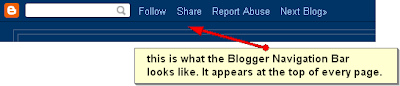
I suggest that you remove this bar as it makes your site look more professional. Actually, you aren't removing it at all because I don't think that is possible. You are just hiding it. If you don't see it then you are using a template that has that navbar already hidden so you can ignore these instructions.
You will have to remember, though, that once you remove that bar you will have to go to Blogger.com manually to log into your Dashboard.
1. Click the Layout tab.
2. Click the Edit HTML link.
3. Search (Ctrl + F brings up Find) for body {
4. Click just above that line of code and paste this code and press Enter once.
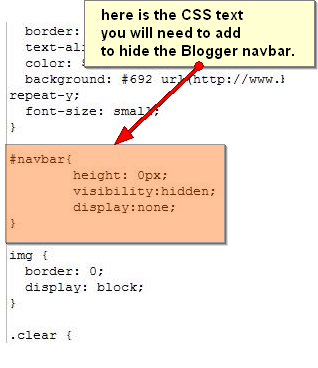 5. Click Save Template at the bottom of the screen.
6. Click the Preview button and you will see that the Navbar is gone.
Now your Blogger blog will look clean and professional because you have hidden the Blogger navigation bar.

I suggest that you remove this bar as it makes your site look more professional. Actually, you aren't removing it at all because I don't think that is possible. You are just hiding it. If you don't see it then you are using a template that has that navbar already hidden so you can ignore these instructions.
You will have to remember, though, that once you remove that bar you will have to go to Blogger.com manually to log into your Dashboard.
Note: Always backup your template before you make any changes to the HTML to ensure you can restore it if you make unwanted mistakes. For instructions on how to backup your template go to this post entitled, "How to Backup your Blogger Template."Step-by-Step Instructions for Removing the Blogger Navigation Bar:
1. Click the Layout tab.
2. Click the Edit HTML link.
3. Search (Ctrl + F brings up Find) for body {
4. Click just above that line of code and paste this code and press Enter once.
#navbar {
height: 0px;
visibility: hidden;
display: none
}
 5. Click Save Template at the bottom of the screen.
6. Click the Preview button and you will see that the Navbar is gone.
Now your Blogger blog will look clean and professional because you have hidden the Blogger navigation bar.
Monday, November 09, 2009 |
1 comments |
Read more...
FREE Blogger Business Templates
Here are some of my favorite Free Blogger Template that are good for using on your business blog. Or just for giving yourself a professional looking blog whether you use it for business or other purposes. These are just some of my favorites. I have so many but I didn't have time to list all of them.
Remember, when you are looking at a template overlook the heading and pictures they show on the Demo because your blog will look different once you upload your own customized header and pictures. You are basically looking at the overall structure, fonts, and color scheme to see if that is what you want.
Remember, these free blog templates are for use only for Blogger blogs.
I am only including screenshots of the templates. To download them you will need to visit the websites or blogs that are actually hosting the files.
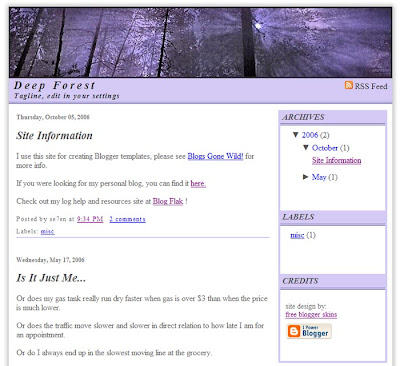 Deep Forest: This is a two column XML layout designed for use with the newest version of Blogger. It’s a fixed width and will fit perfectly on an 800×600 screen size and also works on wider screens as well. It has a permanent RSS Feed link in the heading. Author: se7en
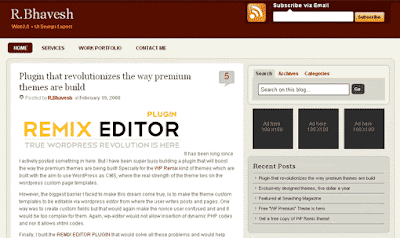 Free Premium Red: This template is originally a WordPress theme created by R. Bhavesh. It has a very professional and sleek look about it. I also like the color scheme because it is easy on the eyes. I could see changing the header (where the dark red is located at the top) to a dark blue, green, beige or other colors to match your business website.
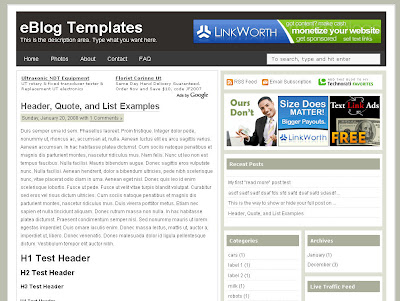
Ad Theme: A wonderful Web 2.0 popular blog layout with some great built in ad spots (hence the template name) and features. It’s either a two or 3 column template so you get the best of both worlds. This Blogger template has almost all the features you need are already built in. On top of that, it’s quite easy to setup and makes your blog look like a professional site without much effort.
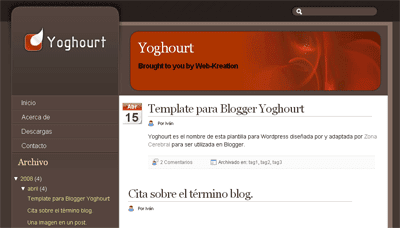 Yoğurt: Ivan , the author of ZonaCerebral converted a Wordpress template to Blogger xml template. I believe it is in Spanish but there is a help document included.
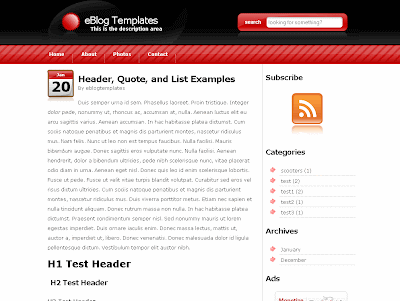
Summer Fruit: This stylish red, white, and black template was originally created by Carl Mason for WordPress and called SummerFruit but has been ported over to a Blogger template by Jacky Supit.
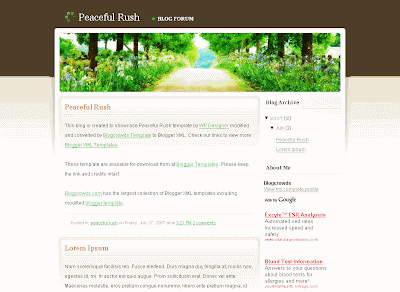 Peaceful Rush:This template was originally designed by our favorite WordPress designer, small potato. His work is used all over the blogosphere and his designs are very well known. This is another one that BlogCrowds has taken and converted into a Blogger template.Remember to overlook the picture at the top of the screen. That is the header area and can easily be changed.
Here are some of my favorite FREE blogger templates sites. You will find a variety of Blogger and even Word Press templates on these sites.
Notice: If you are uncomfortable with modifying HTML code you should pick a template that does not require it. Remember, all you really need to do is to download the template file and upload into Blogger for it to work. You may have to recreate gadgets unless you back them up but you should not have to tweak the HTML code.
When you want to change your template you are doing these basic things:
How to backup your existing template:
You do not have to know how to copy or paste HTML code.
How to customize the look of your template or add gadgets:
Elements you may want to customize on a template to make it your own:
Customizing things like background colors, sidebar colors, font type and color, etc. can often be found by clicking in the Layout tab and then Fonts and Colors.
If you do not see any options for customized these things when you click this tab then you will have to tweak the HTML code. In the future I will explain more about how to tweak the HTML code for things like fonts, backgrounds, color, etc.
You want also want to read more If you want more instructions on how to install a Blogger template.
Please let me know if any of the links above are dead. I am sure some sites will either change or remove templates therefore causing some pages to be dead.
Remember, when you are looking at a template overlook the heading and pictures they show on the Demo because your blog will look different once you upload your own customized header and pictures. You are basically looking at the overall structure, fonts, and color scheme to see if that is what you want.
Remember, these free blog templates are for use only for Blogger blogs.
I am only including screenshots of the templates. To download them you will need to visit the websites or blogs that are actually hosting the files.
Deep Forest: This is a two column XML layout designed for use with the newest version of Blogger. It’s a fixed width and will fit perfectly on an 800×600 screen size and also works on wider screens as well. It has a permanent RSS Feed link in the heading. Author: se7enFree Premium Red: This template is originally a WordPress theme created by R. Bhavesh. It has a very professional and sleek look about it. I also like the color scheme because it is easy on the eyes. I could see changing the header (where the dark red is located at the top) to a dark blue, green, beige or other colors to match your business website.Ad Theme: A wonderful Web 2.0 popular blog layout with some great built in ad spots (hence the template name) and features. It’s either a two or 3 column template so you get the best of both worlds. This Blogger template has almost all the features you need are already built in. On top of that, it’s quite easy to setup and makes your blog look like a professional site without much effort.
Yoğurt: Ivan , the author of ZonaCerebral converted a Wordpress template to Blogger xml template. I believe it is in Spanish but there is a help document included.Summer Fruit: This stylish red, white, and black template was originally created by Carl Mason for WordPress and called SummerFruit but has been ported over to a Blogger template by Jacky Supit.
Peaceful Rush:This template was originally designed by our favorite WordPress designer, small potato. His work is used all over the blogosphere and his designs are very well known. This is another one that BlogCrowds has taken and converted into a Blogger template.Remember to overlook the picture at the top of the screen. That is the header area and can easily be changed.Here are some of my favorite FREE blogger templates sites. You will find a variety of Blogger and even Word Press templates on these sites.
- www.eblogtemplates.com/templates/blogger-templates
- freeskins.blogspot.com
- btemplates.com
- blogspottemplates.blogspot.com
- ourblogtemplates.com
Notice: If you are uncomfortable with modifying HTML code you should pick a template that does not require it. Remember, all you really need to do is to download the template file and upload into Blogger for it to work. You may have to recreate gadgets unless you back them up but you should not have to tweak the HTML code.
When you want to change your template you are doing these basic things:
- Find and download a new template which is usually file.
- Backup your current blog template (optional)
- Upload the new template file.
- Customize your new template by changing fonts, colors, and adding gadgets.
- Go to Blogger.com and sign into your account
- Click the Layout tab.
- Click Edit HTML.
How to backup your existing template:
- Click Download Full Template.
- When the window pops up find where you want to save that file on your computer.
- Click Save.
You do not have to know how to copy or paste HTML code.
- From the Edit HTML tab click on the Browse... button.
- Find the template file (usually ends with .xml) on your computer.
- Click on that file and then click Open.
- Click the Upload button.
How to customize the look of your template or add gadgets:
Elements you may want to customize on a template to make it your own:
- Header
- Fonts
- Link colors
- Background image or color
- Sidebar header colors
Customizing things like background colors, sidebar colors, font type and color, etc. can often be found by clicking in the Layout tab and then Fonts and Colors.
If you do not see any options for customized these things when you click this tab then you will have to tweak the HTML code. In the future I will explain more about how to tweak the HTML code for things like fonts, backgrounds, color, etc.
You want also want to read more If you want more instructions on how to install a Blogger template.
Please let me know if any of the links above are dead. I am sure some sites will either change or remove templates therefore causing some pages to be dead.
Sunday, November 08, 2009 |
2
comments |
Read more...
How to Create Scrolling Ads or Blogroll
 On a blog or website you need to find ways to group like things together to save valuable space that you might want to use for showcasing other important things like an article list or recent posts or even other ads that actually make you money.
Using the HTML tag <marquee> will let you combine similar units like Ads or text links and this will really save you a bunch of valuable sidebar space.
I like to think of sidebar space as REAL ESTATE. What you have on the sidebar should be making you money for the most part. When you think of it as prime real estate you will be selling that space and not just giving it away out of the kindness of your heart. Of course, you will want to put things on your sidebar that you want besides ads but basically your content, what you write about is what you giveaway to your readers so why not sell the rest? It's a WIN-WIN situation for both you and your readers.
Here are some examples of what you can do with the <marquee> tag using graphics or just text.
What I also like about the marquee tag is that when you hover your mouse over a unit it will stop so the viewer can click on an ad or text link.
The first scrolling Ad marquee is using graphic Ads that are 125px X 125px in size. I have them scrolling to the left.
The second scrolling Ad marquee is using graphic ads that are 125px X 125px in size. I have them scrolling to up.
The third scrolling Ad marquee is using text links. I have them scrolling to up.
The fourth is a marquee that scrolls in a single line.
The code you need to start with is:
<marquee onmouseover="this.stop()" direction="left" onmouseout="this.start()" scrollamount="4" loop="true" width="250" height="130">You can change the height and width to fit whatever area you are working with.
You can play around with the scrollamount number to have your scrolling go faster or slower. The higher the number the faster your marquee will scroll.
The loop="true" tells the marquee to keep going and going and going. You can also use loop="2" where 2 is the amount of times you want your marquee to scroll and then stop
If you want the scroll to go up then change the direction to up - and you can use left, right, down.
If I am using ads I try to make all of them have the same size so it looks uniform when it is scrolling. Remember to change the height and width to fit whatever area you are working with. Then you put whatever links or graphics you want to scroll.
For the graphic ads my code looked something like this after the opening marquee tag:
<img alt="Champagne Living" src="http://i408.photobucket.com/albums/pp164/zipporahs1/CL-Card.png" border="0" height="125" /></a>For the text links my code looked something like this after the opening marquee tag:
<a href="http://www.champagneliving.net/" target="_blank">Champagne Living</a>And then you need to close the marquee off with <marquee>
Let me know if you have questions about using the <marquee> tag. It has been around for a long time but I don't think we take enough advantage of this simple tag because we have been taught that as Flash, Java, and other fancy technologies come out we need to be using those. What you have to remember is that although new technologies are very cool they can be complicated to implement and people will older computer may have a hard time getting your site to load if you use them.
And, with just about everything else on my site, using the <marquee> tag is free and does not require that you purchase any program to use it.
Sunday, November 08, 2009 |
4
comments |
Read more...
Blog and Post Topic Ideas
 We covered step one of setting up your blog - picking your blog's topic. Now that you know you need to pick one general topic, or theme, what are you going to write about? This article will give you some examples of blog topics you could write about.
You might be following other blogs and like what they write about and want to copy what they are doing. You never want to outright copy what someone else has done. However you can get an idea of what works for them and use their blog to get ideas for your own blog. The goal is to make your blog unique and something that is totally your own.
Focus on who you are and what you want to accomplish. When you find the topic that you enjoy writing about, have plenty to say on the subject, and can sustain that topic, it will be much easier for you to be a successful blogger.
With that being said, what kind of mom blogger do you want to be?
What you decide to write about determines what type of readers you will attract and how you make money from those readers.
Many moms like to write about what they know, they family, kids, daily frustration, etc. It is an outlet for them. However, this may draw readers who relate but it probably won't make much money.
Does your blog idea solve a problem or help someone in some way. Finding a problem and having the solution is a great way to approach picking out your blog's topic. Take for instance, mom's want to save money at the grocery store. You blog about grocery store deals and coupons. You give those readers the solution to their money problem and help them save money. You could go even further and focus specifically on just grocery stores in your area, which will bring in readers from a very specific area.
What kinds of things do you want to write about?
Here are some topic suggestions you might want to consider.
You may find yourself interested in one or more of these blog topics and maybe you will do a combination of them. However, never, ever pick a topic just because someone else is doing it especially if you don't like the subject matter. You will fizzle out long before you are successful. Since setting up a blog is free you can always start with a topic you know the most about and setup another blog later when the first blog is well on it's way to becoming successful.
The examples given are just ideas to get your started. They are not meant to tell you that this is the only thing you can blog about if you pick one of the main topics. It is to show you the range of things you could blog about if you picked that topic.
Product Review Blogger
Doing product reviews has to be the number one way moms are blogging these days. It is easy to get started even if you don't have any products being sent to you by companies for you to review. Just pick something you are passionate about that you already own and write about it. Maybe you could do a Pros and Cons list, throw in some facts about the product, and then give your opinion. And, viola - you have a product review post.
Examples of products you could write a review for:
- new food product you just purchased that just came out on the market
- last thing you bought from the store
- that new outfit you bought
- something you have been using for awhile and realized that you just love all of the features and want to tell others why you like this product so much
- something you have been using that you just hate for one reason or another. You want to warn people why they shouldn't buy this product or at least let them know some of the features that don't work so well
This is yet another very popular topic moms are blogging about. Coupon shopping will never go out of style. While it is a hot topic right now you can still teach and write about coupon shopping on your blog 10 years from now and there will still be people who will want to read what you say. Saving money with coupons is a topic that will never run out of material. From grocery store savings, to CVS and Walgreens deals, coupon blogging can be very lucrative as you get readers to print out coupons you are promoting. When they click to print a coupon you will make money from each coupon print.
Examples of Coupon Blogger posts:
- explain where to find coupons both in your local area and online
- show how to match up coupons with a specific grocery store or drugstore ad to get the best deal each week
- teach people how to organize their coupon
- post a hot list of coupons each week
We all love free stuff and sharing with readers and visitors where to find freebies is a great topic to blog about. Do a search on free stuff, freebies, or free samples and you will find thousands of blogs on the subject. There is always room for yet another freebie blogger.
Examples of a Freebie Blogger posts:
- post about individual freebies and samples you find
- write articles about how to watch out for scam offers
- start a running list of freebies that are available all of the time that do not expire
- teach how to get money back on purchases using eBates, Cashbaq or ShopatHome
Do you love to shop and are you looking for the best deals? Why not share what you find with others. Show your readers where you go to get the best deals online, how to save money with coupons, where to shop locally or at big national chain stores and how to get the best deals. When you find a hot shopping tip share that as well. What is your favorite thing to shop for and save money on? Clothes? Food? Beauty products?
Examples of a Shopping Blogger posts:
- post individual deals as you find them and include coupons if you know about them
- share how to find free shipping
- share inside information for saving money if you know it - maybe you will know about sales ahead of time or know what stores have the best deals on what days
- write up a yearly holiday gift guide promoting the hottest items for that year
Do you have a flair for fashion? Love trying on clothes and matching up outfits? Do you follow the latest trends in fashion? You may be a fashion blogger. You could write about how to put together the best outfit for your body shape, where to shop to get the "look for less" and where to save money on your favorite designer, or how to accessorize.
Examples for Fashion or Beauty Blogger posts:
- how to create the look for less by showing a designer outfit and then showing how this outfit can be put together from clothes purchased at off-price stores like TJMaxx or Marshalls
- show what accessories such as belts, scarves, and jewelry can be matched to the outfit
- show how 10 pieces of clothing can be made into 50 outfits
- write about what your favorite movie star or celebrity is wearing
Pick one hobby such as knitting, crocheting, sewing, quilting, stamp collecting, bowling, skating, or scrapbooking to write about. There are so many hobbies out there that the list is almost endless. Are you already participating in a hobby? You could blog about that and because you have experience with that hobby you will have a lot of information to pull from.
Examples for Hobby Blogger posts:
- teach how to get started in a specific hobby
- give step-by-step lessons how to do something pertaining to this hobby
- share where to get supplies for this hobby
- share how to save money to participate in this hobby (coupons, sales)
- share intermediate and advanced tips for this hobby
Are you really good with the computer, on the Internet, social media, or love playing with the latest tech gadget? Why not blog about how to use a specific piece of software, or how to use the iPhone or install an app; how to use Twitter, Facebook, or LinkedIn; how to install a printer or replace a hard drive. You could write about the upcoming tech shows or keep your readers up-to-date with the latest trends in technology or even just about one piece of software or type of computer.
Examples for Technology or Computer Blogger posts:
- pick one piece of software and write how to articles about it
- write articles about sites that offer anything free relating to the computer, iPhone, or Kindle
- teach how to use Twitter or Facebook
- do a pros and cons list for using Twitter
- give a list of Twitter applications
- show how to find people on Twitter or Facebook
- read a current tech news article and write your opinion about it
- talk about where to get software or computers cheaper and promote sales
Do you just love to cook and try out new recipes? Maybe you like creating your own recipes. You just might want to become a foodie, recipe, or cook blogger. There are limitless possibilities with this topic. You could write up new recipes; explain how to use the latest kitchen gadget; review cooking utensils and gadgets; write up about your favorite chef or cooking show; and give cooking tips.
Examples for Recipe, Foodie, or Cooking Blogger posts:
- review the latest kitchen or cooking gadget
- write about your favorite chef and give out some of their recipes
- do reviews of restaurants
- write up your own recipes and explain how to make them with picture or videos
- give cooking tips for just about anything from how to peel a potato to making a souffle
- give beginners instructions, intermediate and advanced directions
Do you find that family and friends are always coming to you for some type of advice? Maybe you have enough knowledge in a particular area to give advice. With this type of blog topic you do have to be careful that you explain that what you are writing is your own opinion and should not be substituted for professional help, especially when it concerns money, mental or physical health. However, if you are a professional on the topic then all the more reason to give advice on the topic you already know about. You could setup a column-type blog like Dear Abby.
Here are some other blog topics you might want to consider that I am not going into detail.
- Art Enthusiast
- Music Blogger (trends in music, opinions about artists and specific music)
- Movie Review Blogger
- Controversial Blogger (strong opinions can drive lots of traffic but you have to be willing to deal with a lot of negative comments)
- General Gamer Blogger
- Specific Gammer Blogger (blogs about one game)
- Book Blogger (reviews books, writers, etc)
- Vlogger (someone who spends most of their time videoing things instead of writing most of their content)
Remember, it isn't the topic that makes your blog unique, it is what and how you write about that topic. By adding your personality into the tone of your blog posts you can create a blog using a very popular topic and make it your own.
I do suggest that you keep to one general theme. If you write about coupon shopping, for example, you could easily add in shopping deals and where to get freebies, but I wouldn't write about fashion trends or how to fix your computer.
Can you think of other topics you or something else could blog about? I am sure there are some great ideas out there and I'd love to hear about them.
Need even more ideas for blog topics or individual blog posts? Read Chris Brogan's 100 Blog Topics I Hope You Write.
Tuesday, November 03, 2009 |
2
comments |
Read more...
Blogger VS WordPress
 Blogs are setup everyday by individuals wanting to share their life with friends, family and people they meet online; by business owners wanting to promote their business website; by people wanting to make money online with a blog; or for a hundred and one other reasons.
Deciding that you want a blog can be the easy part. Figuring out how to set one up is another story. And then there is the decision of what blogging platform to use. There are many to choose from - Blogger, WordPress, Drupal, Typepad, and lots of others I probably don't even know about.
Some of my blogs are on the free Blogger blogging platform and others are on Word Press. I have put together an extensive list of Pros and Cons of both Blogger and WordPress, mainly because they are the most popular blogging platforms I see online, so you can decide for yourself.
You should never take my word for something or anyone elses unless they are giving you facts. I say always get a second opinion because often what you read is clouded with that person's experiences and prejudices for whatever topic they are talking about. I think you need to know what each blogging system has to offer so you can make your choice that way instead of every friend you know telling you that you HAVE to use Blogger or you HAVE to use WordPress. You decide what you want and need in a blogging platform by making an educated choice based on the facts.
I found that the a good way of deciding on something like this is to do a Pros and Cons list. I have experience with both platforms and this is what I came up with. I am sure there are more features I didn't cover so if you have suggestions or comments feel free to leave them below.
Business Blogging Update: You may have found this post because you are trying to figure out if you should use Blogger or WordPress for your business blog. If you are not an SEO specialist and do not have the time to tweak your blog to help you get traffic and build up your business brand then you might want to stick with WordPress. It has a lot of great, built-in SEO features that are great for business blogs.
Blogger Blogging Platform
Blogger Pros:
- Free hosting
- Drag and drop gadgets (widgets) are easy to move around
- Owned by Google
- Easy to setup in 5 minutes
- Easy for a "newbie" to understand how to use
- You can place ads on your blog to monetize it (make money)
- You can add a custom domain without paying for hosting
- Free access to edit the HTML and CSS if you want to
- Images are hosted for free with no limits (that I see)
- Let's you export your blog for backup on your computer (posts)
- Let's you backup your template
- Creates a free archive daily, weekly, or monthly
- Unlimited storage
- Can create a private blog
- Limited gadgets (widgets)
- Post title URLs cannot be changed once they are made
- Post title URLs are limited to 35 characters
- Limited features (features like WordPress plug-ins)
- Requires knowledge of HTML to add certain features
- Cannot create true static pages
- No way to contact Google if your blog goes down
- You really do not own your content and Google can remove your blog at any time (see their policies)
- To see comments you need to subscribe to them by email. That means an individual email for each comment that is posted on the site
- There is a limit of 100 users for a private blog with no way to upgrade this total
Pros:
Blogger is owned by Google so getting on the search engines seem to be easier. I had a couple of Blogger blogs appear on page 1 of the search engine results for my topic in 3 days using a free Blogger blog domain name (.blogspot.com).
Hosting is always free even if you own a custom domain.
Google allows you to monetize (make money) with your blog by adding Google Adsense ads and other ads.
It takes approximately 5 minutes to set up a Blogger blog using one of their standard templates and even a person who is new to blogging can understand how to create a post within a few minutes.
You can create gadgets (sometimes called widgets) easily and if you get "tired" of where they appear on the blog you just click and drag them to a new location.
You cannot create a static pages using Blogger. I have, however, found a work around that makes posts look static and have gadgets appear only on the homepage.
Cons:
The flip side is that because Google owns your blog they also own the content. They can pull your blog for any reason and they don't have to restore it. Read their policies.
There are limited gadgets (widgets) available unlike WordPress which let's you install plug-ins that give you more options. The limited features I am talking about would be the plug-ins that WordPress offers such as the All-in-One SEO package, printing a page option, threaded comments, and more. These things are possible with Blogger but you would need extensive HTML knowledge to create them or at least feel comfortable "tweaking" the HTML code.
You can only have a short post title if you want to make it SEO friendly because they cut off the permalink at 35 to 40 characters.
You will need knowledge of HTML and feel comfortable editing the template in HTML to get certain customized features to work.
If your blog goes down for some reason I have never found an easy way to contact Google and have them respond. Since hosting is free through Google you are at their mercy many times.
WordPress Blogging Platform
Word Press has two formats - the free wordpress.com blog and the self hosted wordpress.org version
WordPress.com Pros:
- Free hosting at wordpress.com
- Drag and drop widgets
- You can create static pages like a website
- Intuitive Dashboard and features
- Can create a private blog
- If you pay to add more private users you can pay for an upgrade
- Cannot monetize your blog so you can't make money with it
- Cannot edit the HTML or CSS, however, you can pay for an upgrade if you want that function
- Limited to themes (templates) they have in their gallery
- You can only move the widgets up or down so you cannot easily move them anywhere you want on the blog
- You must pay extra if you want extra storage space above 3 GB
- Limited amount of templates available
- WordPress.com may put Adsense ads on your blog to help them pay for the service. You can turn this feature off if you pay
- Private users are limited to 35
-
- The WordPress interface is slow to load, create posts, and even switch to various functions
- Free WordPress platform software
- You can create static pages like a website
- Free Professional templates available all over the Internet to download and upload through your Dashboard
- Thousands of free plug-ins available
- You can tweak HTML and CSS
- Post URLS are easy to save using search engine optimization tricks and easy to change if need
- Very SEO friendly right out of the gate
- You must pay for monthly or yearly hosting
- You must keep your own backup
- You must figure out how to install the software on your host
- You must manually download and install all upgrades yourself
- Sometimes you may need to know how to use FTP software to upload the template and plug-ins although many of these features are now available through the Dashboard
- The WordPress interface is slow to load and post to
Pros:
WordPress.com gives you a free blog and a wordpress.com domain address and also hosts your blog for free.
WordPress.com does provide good quality templates and the ability to add widgets like link lists, HTML code, etc. There is a lot of help available on the WordPress website.
You get a certain amount of storage so you can upload pictures and videos for free until you reach that limit.
The WordPress dashboard is sleek and modern looking and fairly easy to understand.
Spam is easy to get rid of and you can view all of your comments from the Dashboard so you don't have to subscribe to them by email.
Cons:
With WordPress.com (free version) you are limited to the templates available in the gallery. Although there are many professional WordPress templates available on the web you cannot use them unless you use the WordPress.org site and download the software on your own hosting account (that you pay for) and install it.
Unless your host provides help this can be challenging and not suggested for a newbie blogger.
You also have to manually install all of the upgrades that WordPress comes out with. If you don't know what you are doing customized features you have added may be wiped out when you upgrade. If you don't use any customized features it should be fine.
You cannot use the free plug-ins on the free WordPress.com site and you cannot add JavaScript or monetize your free blog to make money. Because you cannot add JavaScript then some things like adding a Twitter widget or a photo gallery widget will also not work.
You cannot tweak the HTML code on the free site but you can if you pay for hosting and download the software.
What do I use?
For quite awhile I used Blogger. I like the ability to tweak the HTML when I want, be able to monetize new blogs right away, drag and drop widgets all over the place, and I like how fast the Blogger interface runs when I am working on one of my blogs.
When I started blogging I didn't have any money to invest in a domain name or hosting. As time went on, however, I was able to afford domain names and hosting and I also realized that WordPress was designed to be SEO friendly. That is a huge thing for me because there are limited things you can do with Blogger to optimize your site for search engines.
What I don't like about Blogger:
- No cool plug-ins like WordPress which make me have to add features manually into HTML
- No ability to change a post URL to make it more SEO friendly
- No way to contact Google when something goes wrong
- I don't know the content and Google can pull my site on a whim
What do you think?
What do you hate about Blogger?
What do you like about Blogger?
What do you hate about Word Press?
What do you like about Word Press?
Tuesday, October 27, 2009 |
1 comments |
Read more...


